
Installation
Archeform BIM installs like any other SketchUp extension: one .rbz file through
the Extension Manager.
What you need
Section titled “What you need”| SketchUp | Pro or Studio, 2024 / 2025 / 2026 |
| System | Windows or macOS |
| Not supported | SketchUp Go and SketchUp Free |
SketchUp Go runs in a browser and has no Ruby API, so no extension can run there — not ours and not anybody else’s. Archeform needs the desktop application.
Install
Section titled “Install”- Download
archeform-bim.rbzfrom your account. - In SketchUp open Window → Extension Manager.
- Click Install Extension and choose the downloaded
.rbz. - Confirm the security prompt if SketchUp shows one.
- Restart SketchUp. Menus and palettes are registered once at start-up, so the extension is not fully available until you do.
What you should see
Section titled “What you should see”After the restart:
- The Project palette opens by itself. It is the organiser — storeys, plans, elevations and sections.
- Plugins → Archeform appears in the menu bar.
- The Archeform toolbar appears, with the fifteen drawing tools. SketchUp remembers whether it was showing when you last quit.
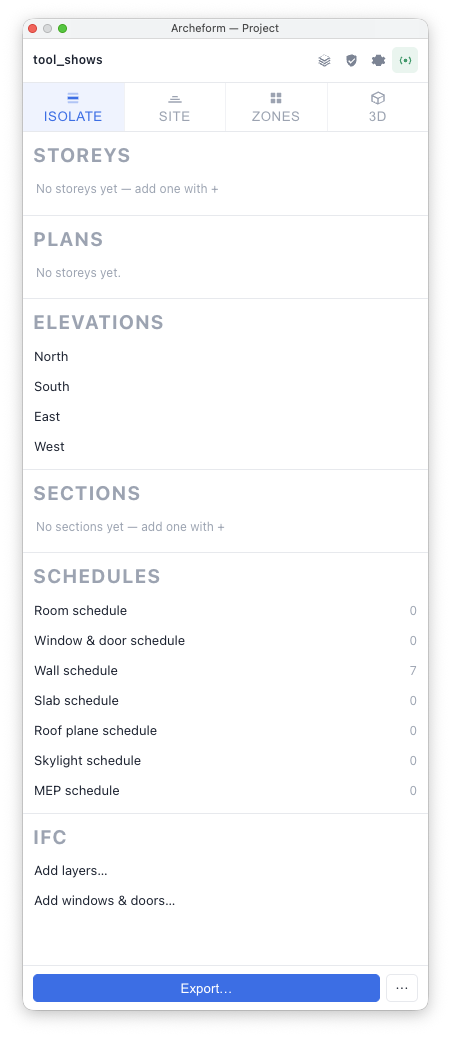
If nothing appears, go to Troubleshooting.
Where the files land
Section titled “Where the files land”You do not need this to work, only to describe your installation when something goes wrong.
Windows %APPDATA%\SketchUp\SketchUp 2026\SketchUp\Plugins\macOS ~/Library/Application Support/SketchUp 2026/SketchUp/Plugins/Each SketchUp version has its own Plugins folder. Installing into 2026 does not put the extension into 2025 — if you run both, install it twice.
Updating
Section titled “Updating”Install the new .rbz over the old one through the Extension Manager and
restart. You do not need to uninstall first.
Your settings and libraries survive an update, because they live outside the extension folder:
- tool defaults, in SketchUp’s own preferences
- your composition library, in
se_bim_compositions.jsonin the Plugins folder - your object library, wherever you pointed it in the Object palette
Removing it
Section titled “Removing it”Window → Extension Manager, find Archeform BIM, click Uninstall.
Models you already made stay readable — the geometry is ordinary SketchUp groups. What you lose is the data on them: without the extension the elements no longer rebuild, and the dialogs, drawings and IFC export are gone.